Messaging Made EasyTM allows you to define templates for SMS and Viber messages that allow you to standardise your messaging across the organisation. To create a message template, visit the "Message Templates" tab in the Messaging Made EasyTM app and click "New". You will be asked to deifne a name for the template, select a channel the template applies to, and which object the template targets for data hydration during sending. Upon clicking save you will be taken to the template editor. Click "Edit" to begin crafting your template.
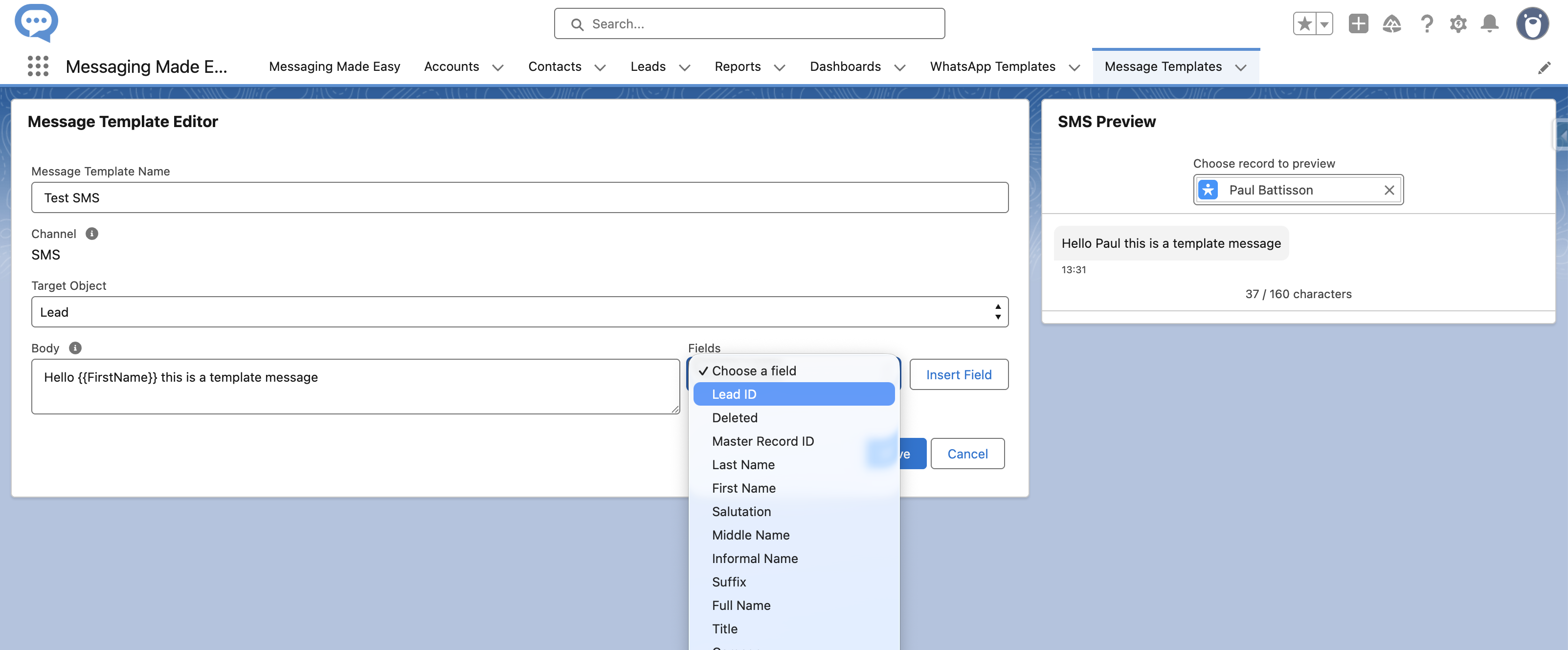
Use the input fields to define your message and the related "Fields" dropdown lists to select fields fro the target object to use in the message template. They will be added in the format {{fieldApiName}} You can also use the live preview to select a record of the correct type and see how the message looks when hydrated with data. Note that for Viber messages, to preview images and video hosted you will need to add the host for these pieces of content in the Tursted URLs section of the Setup menu. Press "Save" to save your template for use.
Templates can be used throughout the application for sending:
